Checkerboard Pattern Brush for Procreate: A Practical Tool for Digital Artists
Understanding the Checkerboard Pattern Brush in Procreate
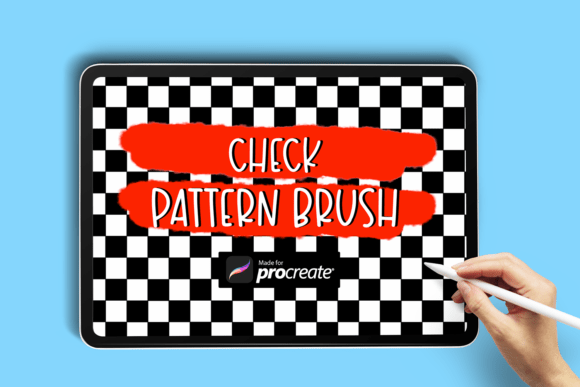
The Checkerboard Pattern Brush for Procreate is a specialized digital brush designed to streamline the creation of checkerboard designs within the Procreate app. Unlike manually drawing individual squares or using generic pattern brushes, this brush automates the process, producing a clean, symmetrical grid of alternating squares with minimal effort. The brush is particularly useful for artists, illustrators, and designers who frequently incorporate geometric patterns into their work.
Once downloaded and installed, the brush behaves like any other custom brush in Procreate but with a unique texture and stroke behavior that generates the classic checkerboard motif. The brush’s performance is optimized for pressure sensitivity and stroke consistency, making it suitable for both sketching and final detailing.
How to Download and Install the Checkerboard Pattern Brush
Downloading and installing the Checkerboard Pattern Brush is a straightforward process. Begin by obtaining the zip folder containing the .brush file from a trusted source. Transfer the file to your iPad via email, cloud storage, or direct download using Safari.
- Locate the downloaded zip folder in the Files app.
- Tap the folder to extract its contents.
- Find the .brush file and open it using the Procreate app.
Procreate will automatically import the brush into your Brushes panel, where you can access it under the “Imported” category. From there, you can adjust settings like opacity, grain, and scattering to customize the brush for your specific project.
What You Get with the Checkerboard Pattern Brush
This package includes one check pattern brush file, designed to provide a seamless and scalable checkerboard effect. The brush is pre-configured for optimal performance and includes texture and grain settings that mimic traditional media while maintaining the clarity of a digital pattern. It’s ideal for backgrounds, borders, and design accents that require a balanced geometric rhythm.
How Checkerboard Pattern Brush Compares to Similar Tools
While Procreate comes with a robust library of default brushes, many of which can be adjusted to create patterns, the Checkerboard Pattern Brush offers a more efficient and consistent solution for this specific design need. Compared to manually drawing squares or using standard pattern brushes, it significantly reduces the time and effort required to achieve a polished checkerboard layout.
Alternative methods, such as layering shapes in Procreate or importing pre-made patterns as stamps, can be effective but often require more steps and adjustments. The Checkerboard Pattern Brush simplifies this process by embedding the pattern directly into the brush stroke, allowing for dynamic scaling and application across curved or irregular surfaces.
Strengths and Limitations of the Checkerboard Pattern Brush
One of the main strengths of this brush is its efficiency. Artists who regularly work with geometric designs will appreciate the time saved by not having to manually create or adjust patterns. Additionally, the brush integrates smoothly with Procreate’s layer system, allowing for color overlays, blending modes, and texture additions without compromising the integrity of the pattern.
However, the brush is inherently specialized, which means it may not be versatile enough for broader artistic needs. Users looking for a wide variety of patterns or more customizable options may find the single-brush format limiting. Furthermore, the brush’s effectiveness depends on how well it’s configured for different stroke pressures and canvas resolutions, which can vary depending on the artist’s iPad model and stylus.
When to Use the Checkerboard Pattern Brush
This brush is best suited for digital artists who frequently incorporate checkerboard designs into their work. It’s especially useful for creating backgrounds, textile designs, game board layouts, and decorative elements where symmetry and repetition are key. Illustrators working in editorial or children’s book art may find it helpful for adding structured visual interest without the need for repetitive drawing.
For artists who only occasionally need a checkerboard pattern, alternative methods like shape layering or importing vector patterns may be sufficient. However, for those who regularly work with this motif, the Checkerboard Pattern Brush offers a more streamlined and professional result.
Practical Examples and Use Cases
- Game Design: Quickly create chess or checkers board layouts directly within Procreate without relying on external templates.
- Textile Design: Generate seamless fabric patterns that can be exported and scaled for print or digital mockups.
- Children’s Illustration: Add playful, structured backgrounds to scenes featuring animals, vehicles, or educational themes.
- UI/UX Mockups: Design interface elements with a retro or modern geometric flair using clean, consistent patterns.
Decision Factors: Is the Checkerboard Pattern Brush Right for You?
When evaluating whether to use the Checkerboard Pattern Brush, consider your frequency of use, design style, and the complexity of your projects. If you often find yourself needing to create checkerboard effects and want a more efficient way to do so within Procreate, this brush is likely a good fit. On the other hand, if you prefer full manual control or need a broader range of pattern options, you may benefit more from using Procreate’s built-in tools or third-party brush packs that include multiple pattern styles.
Also, consider the learning curve. While the brush is easy to install and use, achieving the best results may require some experimentation with brush settings and layer blending modes. Artists who are comfortable adjusting brush dynamics and layer effects will get the most out of this tool.
Final Thoughts on the Checkerboard Pattern Brush
The Checkerboard Pattern Brush for Procreate is a specialized but effective tool for digital artists who regularly work with geometric motifs. It simplifies the creation of checkerboard designs and integrates seamlessly into the Procreate workflow. While it may not replace more versatile brushes or manual drawing techniques, it offers a valuable shortcut for those who prioritize efficiency and consistency in their design process.